Monta un quiosco de fichajeSet up a clock-in kiosk
Convierte una tableta en un punto de fichaje de pared: cada persona ficha con su código y su PIN, sin cuenta ni móvil. Cuatro pasos —dos en el panel, dos en la tableta— con capturas reales.Turn a tablet into a wall clock-in point: everyone punches with a code and a PIN, no account or phone. Four steps —two in the panel, two on the tablet— with real screenshots.
1
Enrola el quiosco en el panelEnrol the kiosk in the panel
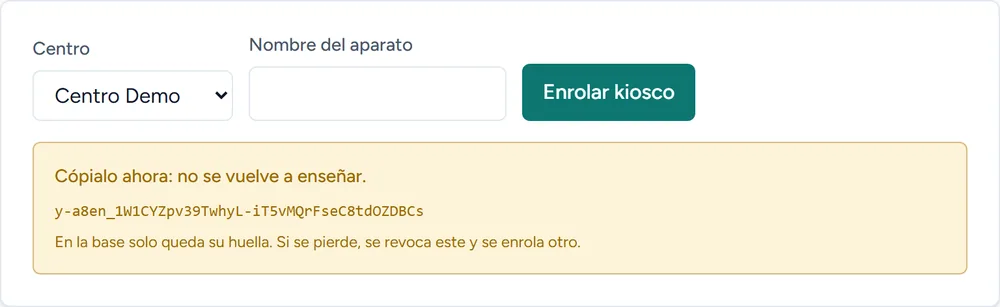
Entra en Ajustes → Quioscos, elige el centro y dale un nombre al aparato (por ejemplo, «Entrada»).Go to Settings → Kiosks, choose the site and name the device (e.g. «Entrance»).
El panel te muestra un token una sola vez. Cópialo: lo pegarás en la tableta.The panel shows a token just once. Copy it: you'll paste it on the tablet.
Solo se ve una vez. En el sistema queda solo su huella. Si lo pierdes, revocas este y enrolas otro — más seguro que poder recuperarlo.Shown only once. Only its fingerprint is stored. If you lose it, revoke this one and enrol another — safer than being recoverable.
app.ponktio.pro
2
Da un código y un PIN a cada personaGive everyone a code and a PIN
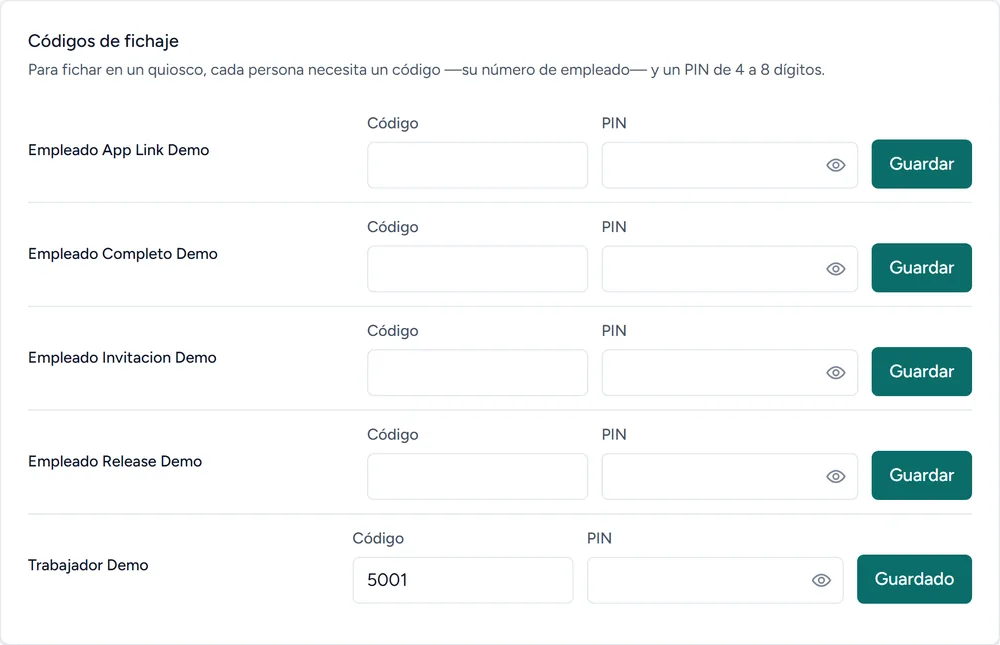
En la misma pantalla, asigna a cada empleado su código de fichaje (su número) y un PIN de 4 a 8 dígitos.On the same screen, give each employee their clock-in code (their number) and a 4-to-8 digit PIN.
Es lo único que teclearán en el quiosco. Sin cuenta, sin correo, sin contraseña.That's all they'll type at the kiosk. No account, no email, no password.
El PIN se guarda cifrado: el panel nunca lo vuelve a mostrar. Si alguien lo olvida, le pones uno nuevo.The PIN is stored encrypted: the panel never shows it again. If someone forgets it, just set a new one.
app.ponktio.pro
3
Activa el quiosco en la tabletaActivate the kiosk on the tablet
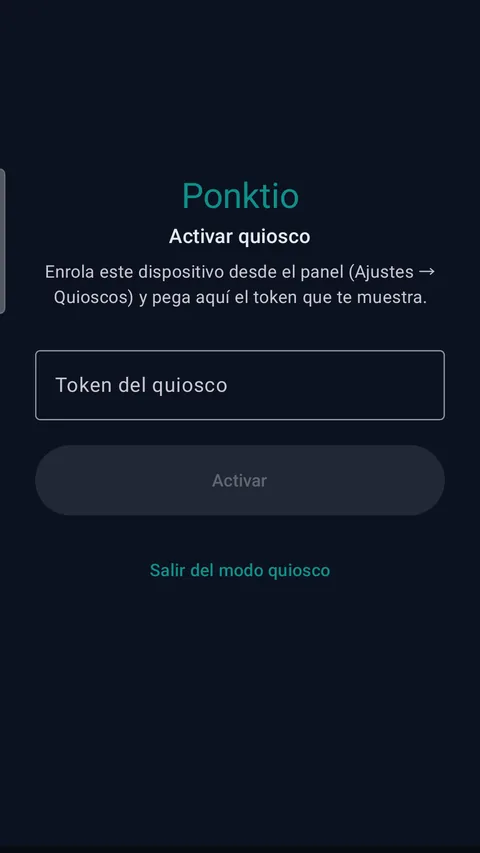
Abre la app Ponktio en la tableta y, en la pantalla de acceso, entra en modo quiosco.Open the Ponktio app on the tablet and, on the sign-in screen, enter kiosk mode.
Pega el token del paso 1 y pulsa Activar. Listo — no lo vuelve a pedir, ni tras un corte de luz.Paste the token from step 1 and tap Activate. Done — it won't ask again, not even after a power cut.
El token se guarda cifrado en la tableta y sobrevive al cierre de sesión: es del aparato, no de una persona.The token is stored encrypted on the tablet and survives sign-out: it belongs to the device, not a person.
4
Listo: a ficharDone: clocking in
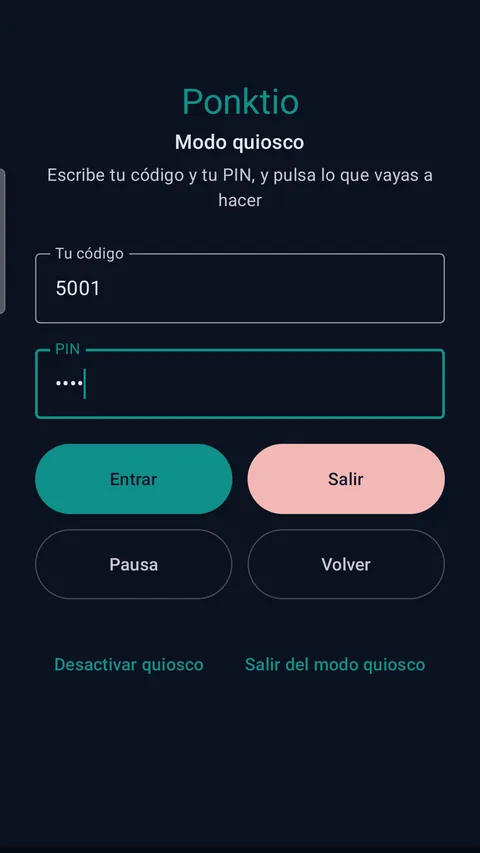
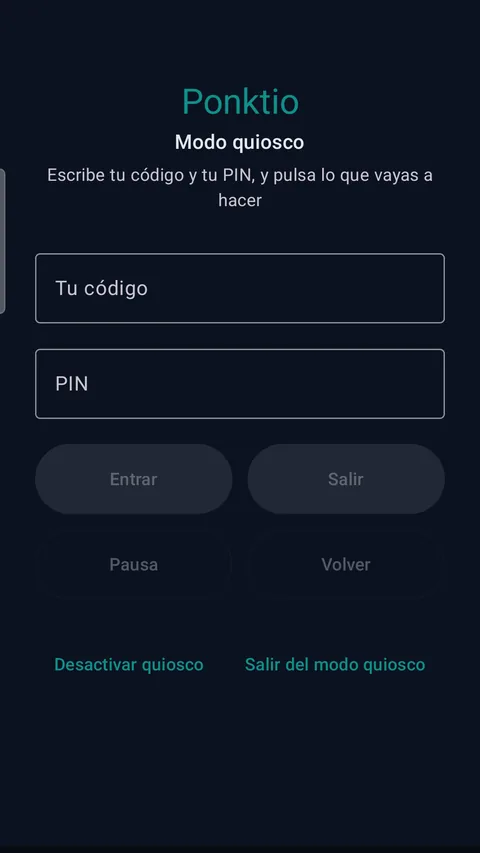
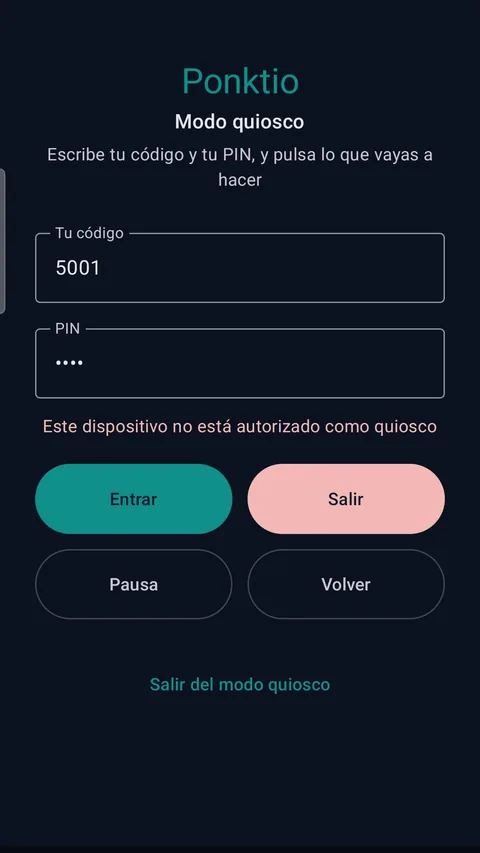
Cada persona escribe su código, luego su PIN.Everyone types their code, then their PIN.
Elige la acción — Entrar, Salir, Pausa, Volver — y el aparato se limpia para el siguiente.Pick the action — In, Out, Break, Back — and the device clears for the next person.
Sin retoquesUnretouched
Así se ve en la app realHow it looks in the real app
Capturas tomadas en un dispositivo, fichando de verdad contra el servidor.Screenshots taken on a device, actually clocking in against the server.
Activado y listoActive and ready El aparato ya ficha: pide código y PIN.The device is live: it asks for code and PIN.
Código y PIN, y a ficharCode and PIN, and clock in Escribes tu número y tu PIN, y pulsas la acción.Type your number and PIN, then tap the action.
Seguridad de serieSecurity by default Si revocas el token desde el panel, deja de fichar al instante.Revoke the token from the panel and it stops clocking at once.
El día de mañanaDown the line
Gestionar el quioscoManaging the kiosk
Desde el panelFrom the panel
Revocar un quioscoRevoke a kiosk
Si pierdes la tableta o la retiras, entra en Ajustes → Quioscos y pulsa Revocar. Deja de fichar en la siguiente pulsación, sin tocar a nadie más.If you lose the tablet or retire it, go to Settings → Kiosks and tap Revoke. It stops clocking on the next tap, touching no one else.
Desde la tabletaFrom the tablet
Desactivar el aparatoDeactivate the device
En la app, «Desactivar quiosco» pide confirmación y olvida el token. No se recupera: para volver a usarla, la enrolas otra vez desde el panel.In the app, «Deactivate kiosk» asks for confirmation and forgets the token. It's not recoverable: to reuse it, enrol it again from the panel.
Si algo fallaIf something fails
Problemas frecuentesCommon issues
El teclado dice «quiosco no autorizado»The keypad says «kiosk not authorised»+
El token no es válido o se ha revocado. Enrola el aparato otra vez desde el panel y pega el token nuevo (Desactivar quiosco → Activar con el token nuevo).The token is invalid or revoked. Enrol the device again from the panel and paste the new token (Deactivate kiosk → Activate with the new token).
«Código o PIN incorrectos»«Wrong code or PIN»+
Revisa el código (el número de empleado) y el PIN. Tras varios fallos seguidos, ese código se bloquea unos minutos: espera y vuelve a intentarlo.Check the code (the employee number) and the PIN. After several failures in a row, that code locks for a few minutes: wait and try again.
Se cerró la sesión y no encuentro el modo quioscoSession closed and I can't find kiosk mode+
El token es del aparato, no de la sesión: sigue activo. En la pantalla de acceso, pulsa «Usar este dispositivo como quiosco» y vuelve directo al teclado de fichaje.The token belongs to the device, not the session: it stays active. On the sign-in screen, tap «Use this device as a kiosk» to go straight back to the clock-in keypad.
¿Prefieres que fiche cada uno con su móvil?Rather have everyone use their own phone?
El código QR hace justo eso: una pantalla en el centro, cada móvil la escanea.The QR code does exactly that: one screen at the site, each phone scans it.